Google Groups lets teams share one email address and manage group conversations. Here's what it is, how to create one, tips for best use, and when to use something else.
A Google Group is a shared email address that routes incoming messages to multiple recipients at once. You can send to a group as if it were a single person, and everyone in the group gets a copy.
Google Groups has been around since 2001, and it still causes a surprising amount of confusion. It does several things at once, and depending on how it's set up, it can look like a mailing list, a forum, a shared inbox, or something in between.
This guide explains what a Google Group actually is, how to create one, how to manage it, and when something else might serve you better.
What is a Google Group?
A Google Group is a shared email address that multiple people can send from and receive messages to. When someone emails the group address, everyone in that group gets a copy. Members can reply individually or to the whole group, depending on how the group's permissions are set.
Google Groups is managed through groups.google.com and is available to anyone with a Google account. If your organization uses Google Workspace, groups can also be created and managed through the Admin Console.
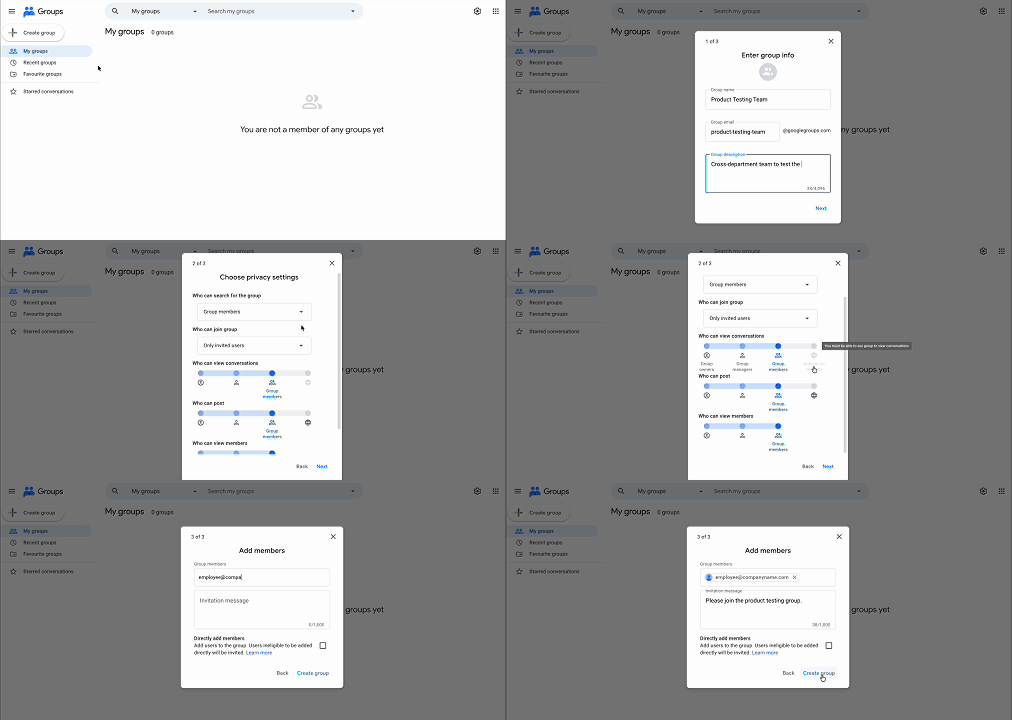
Enter a name for your group and the group email address (for example, team@googlegroups.com or, with Workspace, team@yourcompany.com).
Add a description so members know what the group is for.
Choose your group type from the four options above.
Set your privacy settings: who can search for the group, who can join, who can view conversations, and who can post.
Click Create group.
Add members by entering their email addresses. You can add them immediately or send invitations.
One important distinction: if you're on a personal Google account, your group email will end in @googlegroups.com. If your organization uses Google Workspace, an admin can create groups with your company domain through the Admin Console. The Workspace route gives you more control over visibility and access.
If the group is public: Go to groups.google.com, search for the group by name, and click Ask to join or Join group if it's open to anyone.
If you've been invited or added by an admin: You'll receive an email notification. You're already a member and will start receiving group messages automatically.
If the group is restricted: You'll need to request access and wait for an admin to approve.
If you're trying to find a specific group your organization uses, the fastest route is usually to ask the person who manages it to add you directly.
How do I access a Google Group?
Once you're a member, you have two ways in.
By email: Messages sent to the group land in your inbox like any other email. You don't need to visit groups.google.com at all unless you want to.
Through the web interface: At groups.google.com, you can view all group conversations in one place, reply to threads, adjust your notification settings, and (if you're an admin) manage membership and settings.
A note on Google Messages group mentions: within a group thread, members can be referenced in replies but this happens through the email thread itself, not through a separate chat or messaging interface. Google Groups is an email-based system.
How to avoid being added to Google Groups
Being added to a group without knowing it can mean a sudden influx of emails you didn't sign up for. Here's how to deal with it.
Ask the group admin to remove you: This is the most direct route.
Unsubscribe from emails: Go to groups.google.com, find the group, and change your subscription settings to "No email." You'll remain a member but won't receive messages.
Leave the group entirely: In groups.google.com, open the group, click My membership settings, and select Leave group.
If it's a Workspace group: Contact your IT admin. Workspace group membership is managed at the organizational level and may need admin intervention to change.
How to delete a Google Group
Only the group owner or a Google Workspace admin can delete a group.
Click the Settings icon (the gear icon in the top right of the group page).
Select Group settings.
Scroll to the bottom and click Delete group.
Confirm the deletion.
Deleting a group is permanent. Any conversation history in the group will be lost, and the group email address will no longer receive or route messages.
What’s the purpose of Google Groups?
The most common use cases for Google Groups at work are:
A shared team address: Instead of giving clients eight individual emails, you give them one: support@yourcompany.com, which routes to everyone on the team.
An internal mailing list: Announce a policy change to the whole department in one send.
Looping people into a thread: Add a group to a CC field and everyone in it receives the email.
Sharing Google Drive files or Calendar events: You can grant permissions to a group rather than adding each person individually.
Groups doesn't manage those emails once they arrive, but it routes them. That distinction matters when you're thinking about whether it fits your workflow.
What to use instead of Google Groups
Google Groups solves a specific problem well: routing email to multiple people through one address. For that use case, it works.
But it wasn't designed to manage those emails once they arrive. There's no way to assign conversations, track who has responded, or see which messages are still open. If you're using a Google Group as a de facto shared inbox, you'll quickly run into its limits.
A McKinsey report found that professionals spend close to 28% of the workweek reading and answering email, and a shared address with no management layer on top of it makes that harder, not easier. And according to Fyxer's Admin Burden Index 2026, employees receive an average of 29 emails per day that need a response, and email is the single biggest time-wasting task across all admin categories.
For teams who need a real shared inbox with assignment and visibility, tools like Missive or Front are purpose-built for that. For individuals or small teams using Gmail who want their inbox organized and draft replies ready to go without lifting a finger, Fyxer's AI email organizer works directly inside Gmail, categorizing what needs a response and generating drafts written in your own tone of voice.
It's a different layer to what Google Groups does, and in most team email workflows, it's the more useful one.
Using Google Groups where it fits
Google Groups is a reliable tool for what it's designed to do: route email to multiple people through one address, maintain a mailing list, or host a lightweight web forum. It's free, it works inside Google Workspace, and it doesn't require any setup beyond a Google account.
Where it runs into trouble is when people expect it to manage email rather than just distribute it. If you need visibility into who's replied, which threads are open, and what still needs a response, you'll need something else alongside it or instead of it.
Knowing what a tool is designed to do makes it easier to use correctly, or to recognize when you've outgrown it.
Google Groups FAQs
Is Google Groups still available?
Yes. Google Groups is still active. Google retired the classic interface in 2020 and replaced it with a redesigned version, which is what you see now at groups.google.com. The service itself hasn't gone anywhere. If you've seen articles suggesting otherwise, they're likely referencing that 2020 interface change, not a shutdown.
Is Google Groups free to use?
For personal Google accounts, yes. Google Groups is free. For Google Workspace users, Groups is included in your Workspace subscription at no extra cost. The features available can vary slightly depending on your Workspace plan.
Can you join a Google Group without a Google account?
It depends on how the group is configured. If the group's posting permissions allow it, someone without a Google account can email the group's address and their message will be delivered to members. But they won't be able to access the web interface, view conversation history, manage their membership, or join the group formally. Full membership, including browser access and notification settings, requires a Google account.
Is joining a Google Group safe?
For restricted and private groups, generally yes. For public groups, there are a few things to be aware of. In public groups, your email address is visible to other members. If the group has a high volume of posts or low moderation, you may receive a significant number of emails. Public groups can also attract spam.
Before joining a public Google Group, it's useful to check how active it is and who moderates it. For work-related groups within your organization, the risk is minimal provided the group is set to restricted or private.
How to find a Google Group
Public groups can be searched at groups.google.com by name or topic. If the group is restricted or private, you'll need someone with access to share a direct link or add you. If your organization uses Google Workspace, any groups you belong to are also visible in your account settings.
Are Google Groups private?
Google Groups can be private, but they aren't private by default. When you create a group, you choose the access level.
- Public: Anyone can search for and join the group. Conversations may be visible on the web.
- Restricted: Only invited or approved members can join. The group won't appear in public searches.
- Private: Members-only access. Conversations aren't visible to non-members.
If you're setting up a group for internal team use, you'll want to set it to restricted or private and review the posting permissions carefully. A common mistake is leaving a group set to public when the intent was to keep it internal.